


User Access and User Profiles in MedQdoc #
User access in MedQdoc is managed through user profiles. User profiles define the user’s base access to the eQMS and determine the overall level of functionality available to each user.
Understanding User Profiles in MedQdoc #
In MedQdoc, user access is managed on two levels: user profiles and user permissions. User profiles define the user’s base access to the system, while permissions control what actions the user can perform and which documents they can access.
Each user must be assigned one user profile. The profile determines the overall level of access within MedQdoc. More detailed access, such as creating, reviewing, approving, or reading specific documents, is managed separately through permissions and groups.
Important: User profiles provide base access only. Permissions related to document creation, review, approval, and read access are configured separately through group permissions and are described in a separate instruction.
Full User #
- Has full access to system functionality.
- Can work actively with documents and processes.
- Suitable for users with broad responsibilities within the eQMS.
Standard User #
- Can perform daily operational tasks in MedQdoc.
- Has access to work with documents and processes based on assigned permissions.
- Ideal for most internal users.
Reader #
- Has read-only access to approved documents.
- Cannot create, edit, or approve content.
- Typically used for auditors, consultants, or external stakeholders.
Accessing User Management in MedQdoc #
All user access and profile management is handled from the Company Settings area.
To access User Management:
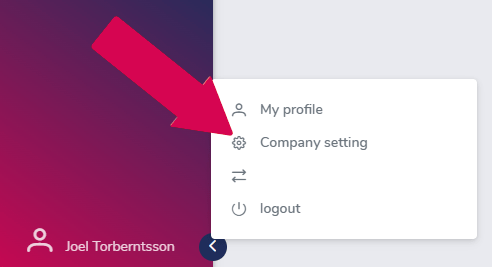
- Click your name in the bottom-left corner of the interface.
- Select Company Settings from the menu.
- From here, you can add new users, edit existing users, and assign the appropriate user profile.
Note: Only users with administrator rights can create, edit, or remove user accounts.
Assigning or Editing a User Profile #
You can assign or update a user profile at any time.
- Go to Manage Users under Company Settings.
- Click the Edit icon next to the user you want to modify.

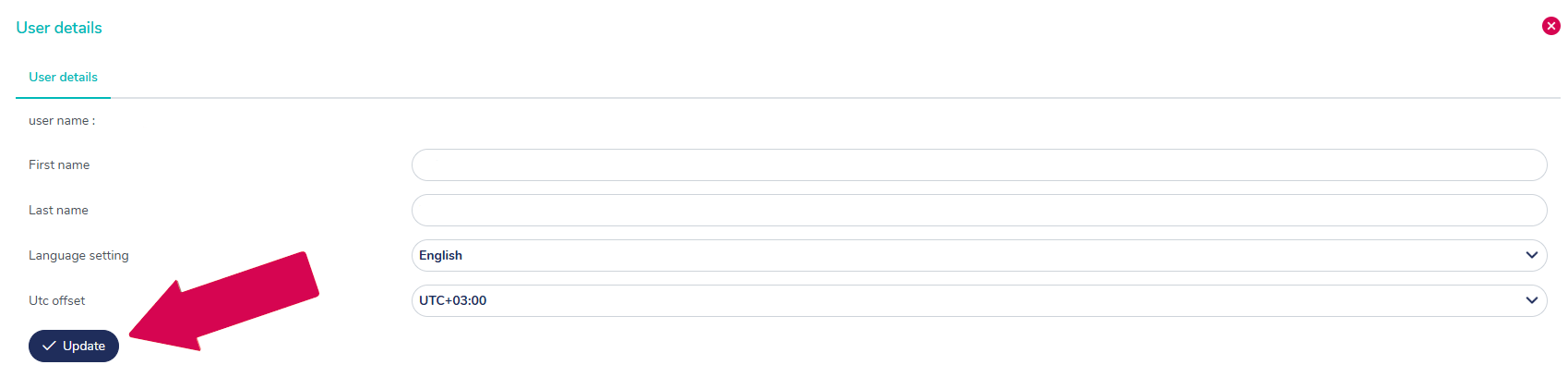
- Select the appropriate user profile: Full User, Standard User, or Reader.
- Click Update to save your changes.
Adding a New User to Your Site #
You can add a new user and assign the appropriate user profile directly from Company Settings. This ensures each user has the correct base access from the start.
- Go to Manage Users under Company Settings.
- Add the new user and assign the appropriate user profile.
Important: If the user already has an existing MedQdoc account, you must contact Customer Support to add the user to your site.


