


Managing Document Tags in MedQdoc #
In MedQdoc, tags are an efficient way to organize and group documents. They help ensure consistency, improve traceability, and support compliance-related workflows by categorizing documents according to type, purpose, or process.
Accessing Document Tags #
To manage tags within your company profile:
- Navigate to the Company Settings menu.
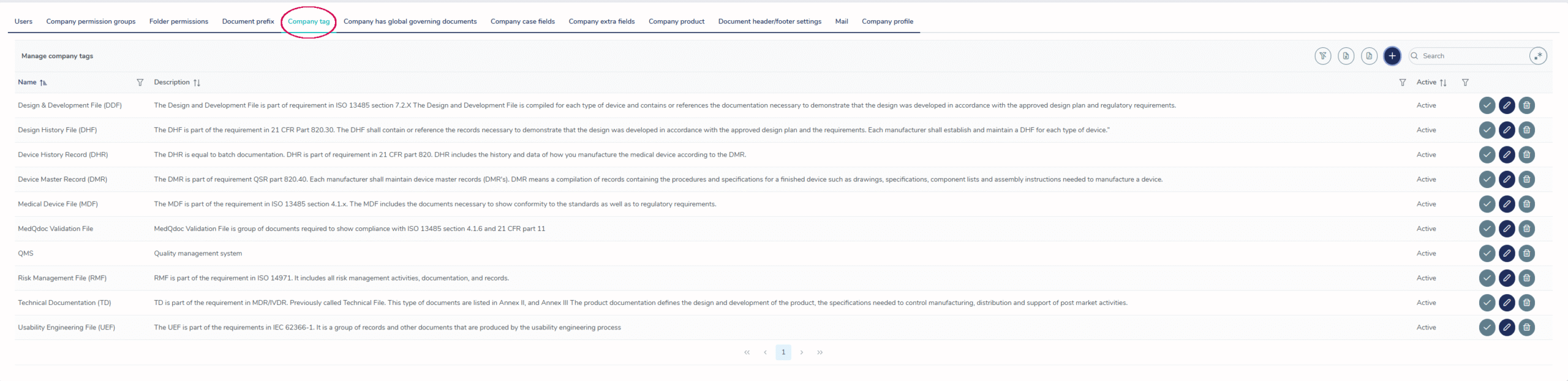
- Select the Company Tags tab at the top of the page.
- Here, you can view a list of existing tags, their descriptions, and their current status (active or inactive).
Note: You can sort or filter your tags by name, description, or activity to find them faster.
Understanding Tags #
Tags help you group documents that share similar characteristics. For example, you might use tags such as Design History File (DHF) or Risk Management File (RMF) to identify documentation required by ISO or regulatory standards.
Assigning consistent tags makes it easier to retrieve complete document sets, for example when preparing for audits or internal reviews.
- MedQdoc includes several predefined tags that cover common documentation types.
- You can edit, rename, or remove these predefined tags based on your organization’s needs.
- You can also create new custom tags tailored to your internal processes.
Best practice: Use a consistent naming convention for tags to avoid duplicates and confusion over time.
Creating and Managing Tags #
To add a new tag:
-
Go to the Company Tags tab under Company Settings.
-
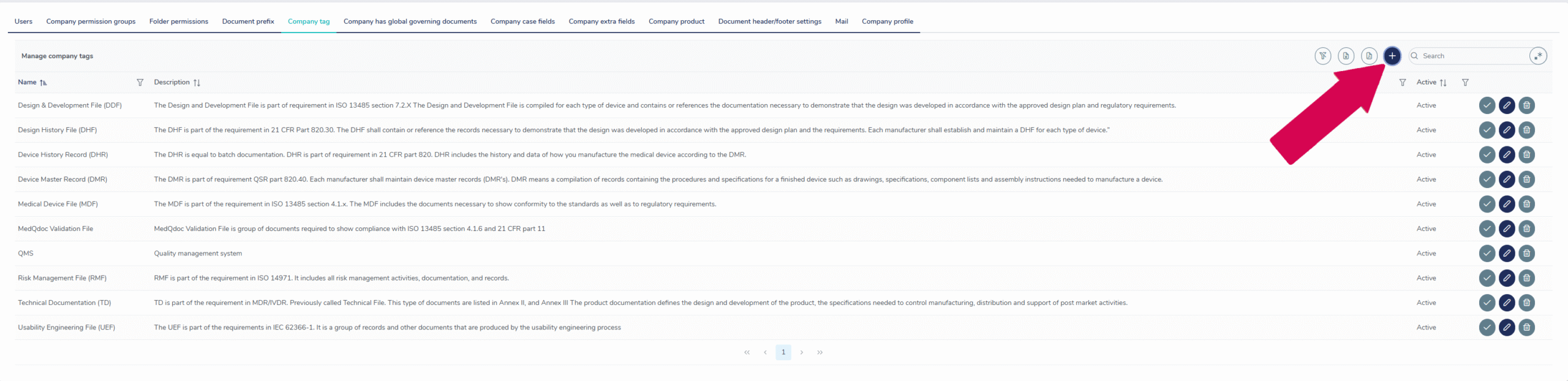
Click the + icon to create a new tag.
- Enter a Name and Description for your tag.
-
Click Create to confirm your changes.
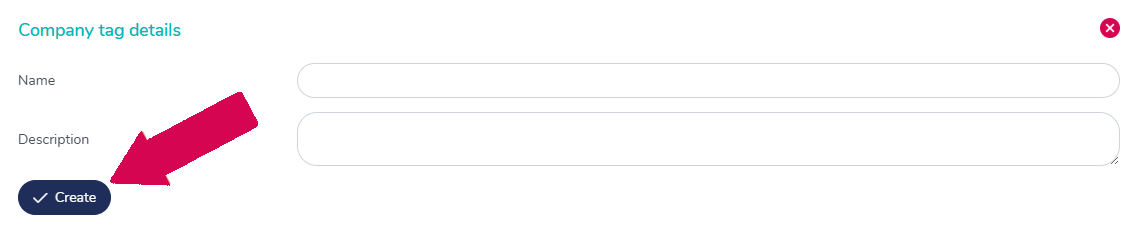
- Make sure the status is set to Active to make it available for use.
Additional Resources #
Downloads


