

How to Create Documents in MedQdoc #
In MedQdoc, you can create new documents in several ways depending on your needs. You can start from a template, create an empty document, upload an existing file, or build a template for future use. This flexibility supports efficient and consistent document creation within your eQMS.
Using the Add New Document Button #
All document creation starts with the Add New Document button. This opens the document creation view where you can choose how the document should be created.
To create a new document:
- Click the + Add New Document button.
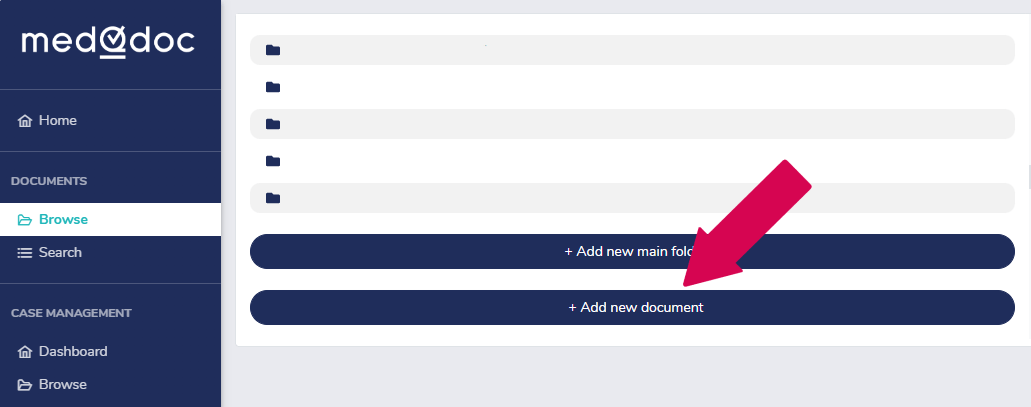
You can then choose one of the following creation options:
- Create document from template
- Create empty document
- Upload document
- Create template
When a document is created, it opens automatically for editing. Each document is assigned a unique document number, generated sequentially by MedQdoc.
Note: A Full Administrator can change the document number if required, but this is generally not recommended.
Create a Document from a Template #
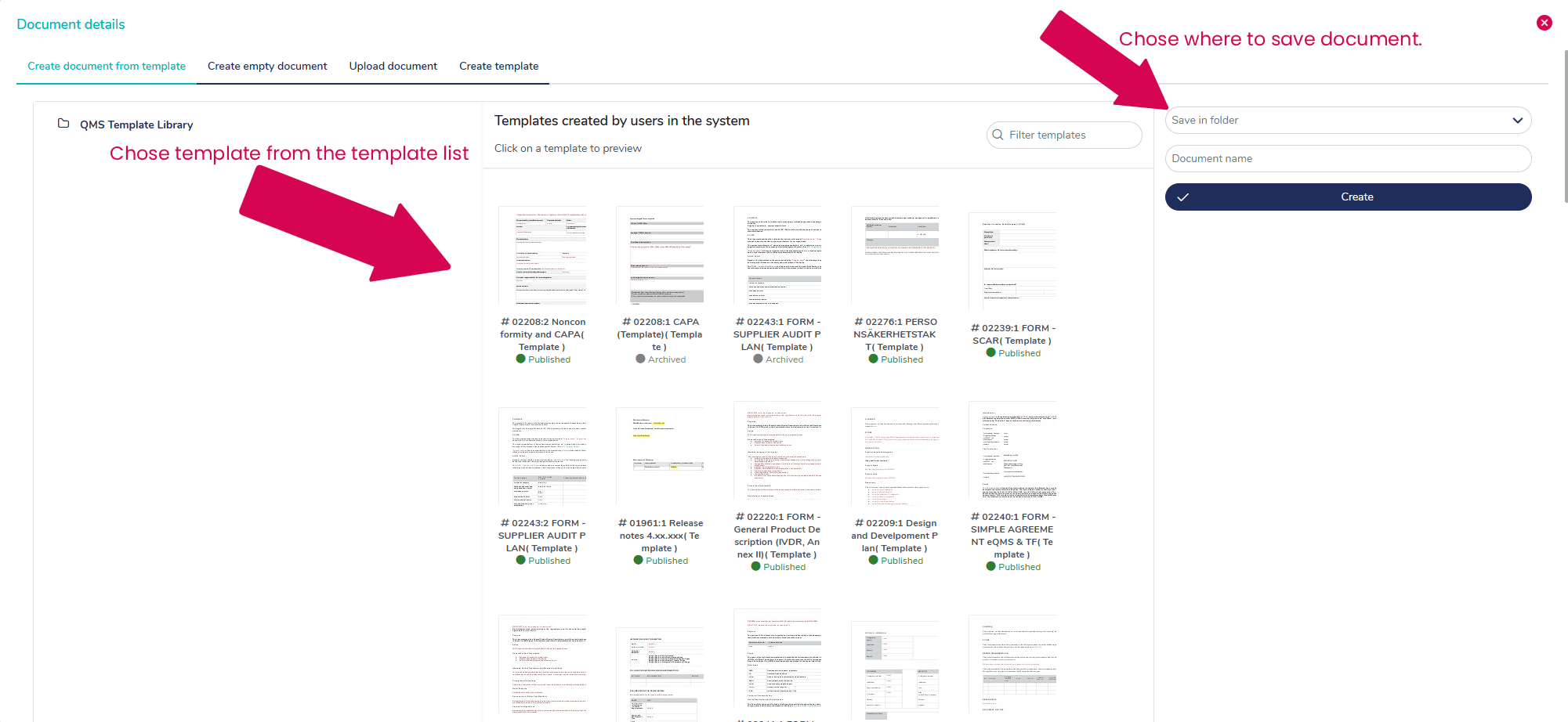
Templates help standardize documentation by providing predefined structure and content. MedQdoc allows you to use both system templates and organization-specific templates.
To create a document from a template:
- Click Add New Document.
- Browse or search for the desired template.
- Select the folder where the document should be stored.
- Enter a Document name.
- Click Create.
Create an Empty Document #
You can create a blank document using one of the supported file formats:
- DOCS
- PPTX
- XLSX
- Draw.io
To create an empty document:
- Select the desired file format.
- Choose the folder where the document should be stored.
- Enter a Document name.
- Click Create.
Upload an Existing Document #
If you already have a document stored locally, you can upload it directly into MedQdoc.
Supported file formats include DOCX, PPTX, XLSX, JPEG, PDF, and PNG.
To upload a document:
- Navigate to the folder where the document should be stored.
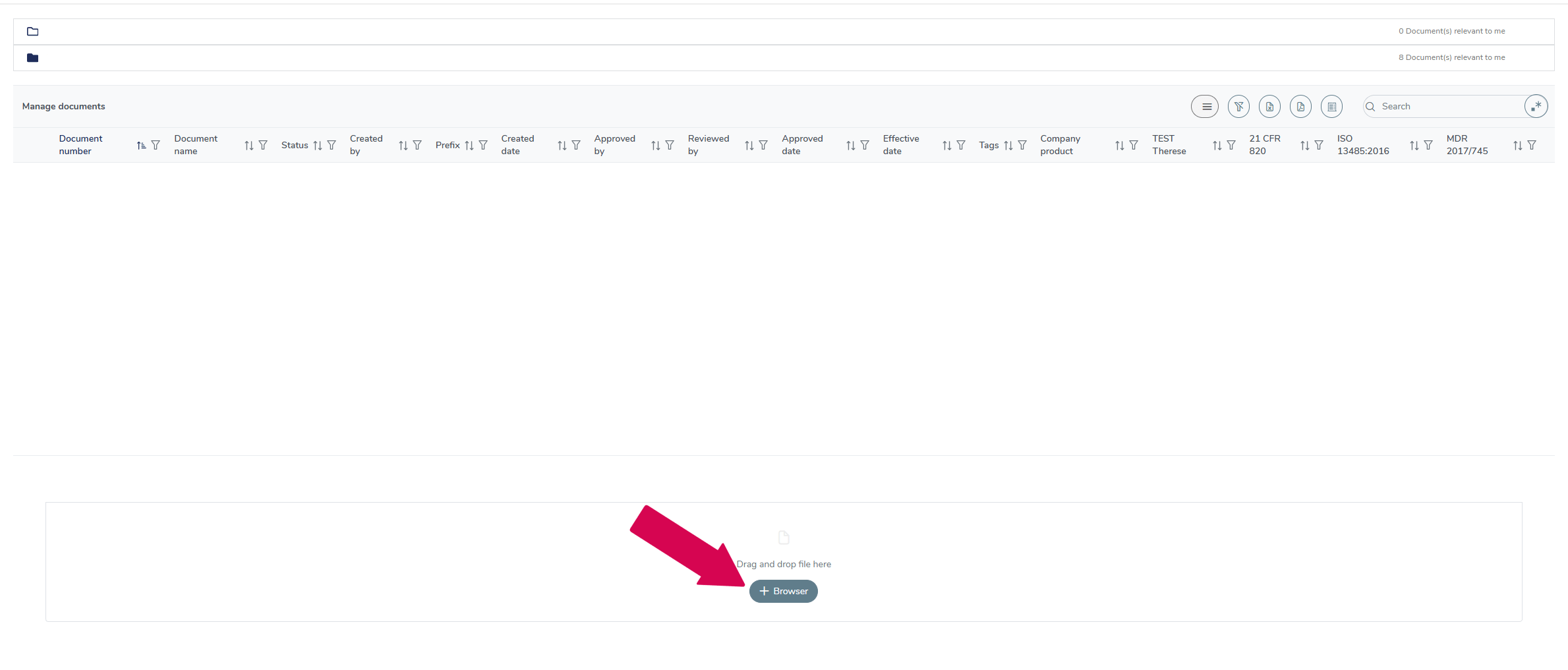
- Drag and drop the file into the upload area or click Browse to select a file.
- Click Upload to import the file.